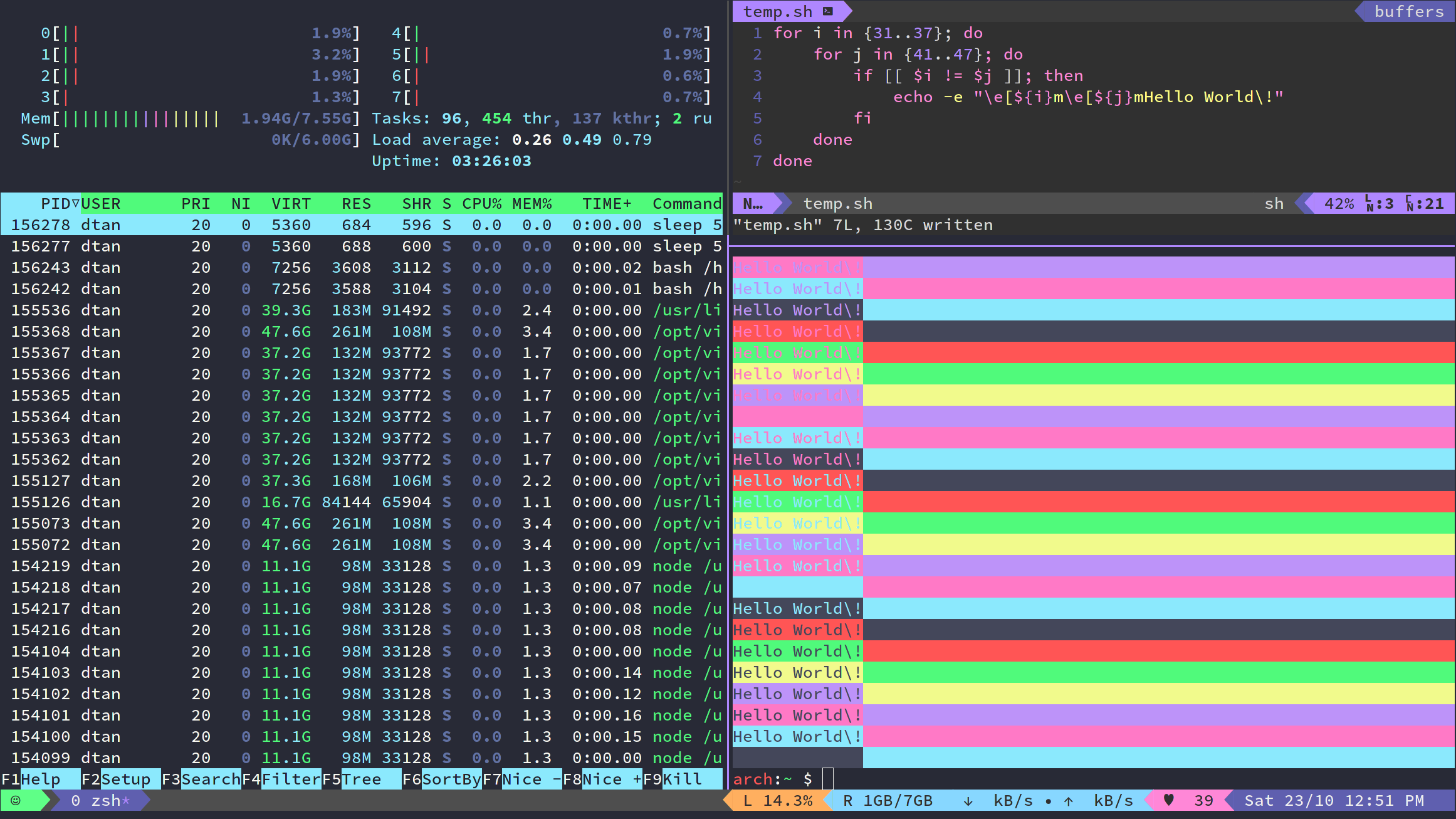
Learn to easily print colored text and styles in terminal.
While using commands like htop or learning Node.JS, you might have come across colored and animated text in terminal. In this article we will have a deeper look at making your terminal and CLI script colorful.
Introduction
There are many popular libraries providing a way to output colored text in terminal like chalk for Node.JS and coloured for Python. Before trying to understand on our own let’s see how these libraries are doing it.
chalk(ansi-styles)
The famous chalk library in turn depends on ansi-styles. Getting a little deeper in code on github you will come across these lines :
const wrapAnsi16 =
    (offset = 0) =>
    (code) =>
        `\u001B[${code + offset}m`;

const wrapAnsi256 =
    (offset = 0) =>
    (code) =>
        `\u001B[${38 + offset};5;${code}m`;

const wrapAnsi16m =
    (offset = 0) =>
    (red, green, blue) =>
        `\u001B[${38 + offset};2;${red};${green};${blue}m`;
Let it be there and take a look at another library.
colored
Colored is also a popular python module to output colored output on terminal. If we took a quick look at the code we will come across these lines:
class colored(object):

    def __init__(self, color):

        self.ESC = "\x1b["
        self.END = "m"
        self.color = color
        self.enable_windows_terminal_mode()
This are not the entire codes but these codes does not look very fancy and complicated at all and did you noticed something common?
Escape Sequences
Both codes for two different libraries have two things in common, 1B[ and m.
Here 1B is a ASCII Escape Character presented either in unicode(\u001B) and hexadecimal(\x1B) form. The [ (open square bracket) along with 1B (escape) is also known as Control Sequence Introducer. CSI along with a color code (ex. for red, 31 => \x1B[31m) creates an Escape Sequence. Here \x1B[31m is treated as a independent escape sequence which signals terminal to change the color of the output after m to Red and similarly for \x1B[32m to Green. See More colors section below for other colors.
Escape sequences are used to signal as an alternative interpretation of a series of characters. Just like \t is interpreted as a tab.
These escape sequences working with only colors are known as ASCII escape code and are standardized. And therefore they work everywhere.
Escape Character
Although in above example \x1B is used as a escape character, we can use any one of the following :
- \x1B
- \u001B
- \033
- \e
Trying out colors
You can use any modern terminal and any programming language to output color.
Linux and MacOS
So lets write red Hello World!
echo is just used to print text in terminal. You can use printf.
echo "\x1B[31mHello World\!"

#or

echo "\u001B[31mHello World\!"

# or

echo "\033[31mHello World\!"

#or

echo "\e[31mHello World\!"
All these commands results in same output :
For further article I am using \e for simplicity. But remember that \e might not work with programming languages.
Windows
For versions before Windows 10, the Windows command prompt does not support output coloring by default. You could install either Cmder, ConEmu or Mintty to add coloring support to your Windows command console.
It turns out that the support was added after Windows 10 build 16257. You can see this stackoverflow question for further steps and add color to powershell.
Programming Languages
In above example echo is used for printing out text to terminal. You can also use above expression with code in any programming language like python, js and c++.
Fire up python IDLE or Node REPL, and with type following code :
print("\x1B[31mHello World\!")
OR
console.log("\x1B[31mHello World!");
You will get the usual output :
\e might not work with programming languages.
More Colors
For more colors you can try changing 31 to something else.
Foreground(Text color)
For foreground we have folllowing options :
echo "\e[${Code}mHello World\!"

# example

echo "\e[35mHii There\!"
| Color | Code | Output |
|---|---|---|
| Black | 30 | Hello World! |
| Red | 31 | Hello World! |
| Green | 32 | Hello World! |
| Yellow | 33 | Hello World! |
| Blue | 34 | Hello World! |
| Magenta | 35 | Hello World! |
| Cyan | 36 | Hello World! |
| White | 37 | Hello World! |
| Default | 39 | Hello World! |
I have considered Default as White.
Background
For background we have folllowing options :
echo "\e[${Code}mHello World\!"

# example

echo "\e[45mHii There\!"
| Color | Code | Output |
|---|---|---|
| Black | 40 | Hello World! |
| Red | 41 | Hello World! |
| Green | 42 | Hello World! |
| Yellow | 43 | Hello World! |
| Blue | 44 | Hello World! |
| Magenta | 45 | Hello World! |
| Cyan | 46 | Hello World! |
| White | 47 | Hello World! |
| Default | 49 | Hello World! |
Custom colors using RGB
Forground
The format for setting up custom foreground colors using RGB values :
echo "\e[38:2:${R_value}:${G_value}:${B_value}mHello World\!"
For example
echo "\e[38:2:247:7:59mHello World\!"
Output :
Background
The format for setting up custom background colors using RGB values :
echo "\e[48:2:${R_value}:${G_value}:${B_value}mHello World\!"
For example
echo "\e[48:2:247:7:59mHello World\!"
Output :
Styles
There are some styles like
- underline
- bold
- italics
The format for applying styles is same as for colors,
echo "\e[${code}mHello World\!"
For example :
echo "\e[4mHello World\!"
Output :
| Color | Code | Output |
|---|---|---|
| Normal (default) | 0 | Hello World! |
| Bold | 1 | Hello World! |
| Faint | 2 | Hello World! |
| Italics | 3 | Hello World! |
| Underline | 4 | Hello World! |
| Blink | 5 | Hello World! |
| Inverse | 7 | Hello World! |
| Invisible | 8 | Hello World! |
| Strikethrough | 9 | Hello World! |
| Double Underline | 21 | Hello World! |
Complex Styles
For more complex styles you can add multiple styles to make a new one. Some simle examples:
| Expression | Result |
|---|---|
| echo “\e[42m\e[31m\e[5mError!” | Error! |
| echo “\e[31mLine 43:21 : \e[33mWARN\e[0m Problem” | Line 43:21 : WARN Problem |
Just understand the \ after m in some cases.
Problems
Linux
- If colors are not rendering properly you should check the value of shell variable $TERM. If it is something other them xterm or xterm-256color, set it to xterm-256color in your ~/.bashrc or ~/.zshrc.
export TERM=xterm-256color
If you have any problem. Let me know in the comments section.
Комментарии